Context Primary Keys
A context primary key is the identifier that isolates one slice of an agent's memory. A CRM expert with key C45653 keeps all conversations about customer C45653 separate from conversations about C78901. When the same key comes up again in the future, the expert loads its history and responds with full context.
This page focuses on expert agents, which are the only type whose context primary keys need manual management.
Who needs manual keys?
| Agent type | Key | Creation |
|---|---|---|
| Expert | Business identifier (customer ID, contract, ticket, regulation) | Manual — you create them |
| Facilitator | The conversation itself | Automatic per thread |
| Human | Set of participant wallet addresses | Automatic on channel entry |
| Digital Twin | Set of participant wallet addresses | Inherited from the human it was forked from |
Designing keys for your domain
Pick an identifier that naturally maps to the thing your agent is an expert about.
| Agent mission | Recommended key | Examples |
|---|---|---|
| Customer Relationship | Customer email or ID | customer@example.com, CUST-45653 |
| Claims Management | Claim number | CLM-2025-00142 |
| GDPR Compliance | Article or chapter reference | Article-15, Chapter-3.1 |
| Accounting | Invoice number | INV-2025-0001 |
| Technical Support | Ticket ID | TKT-8889f6a1 |
Three rules:
- One key type per agent. A CRM expert should have customer IDs, not customer IDs and GDPR chapters. Mixing key types defeats the isolation the mechanism is meant to provide.
- Use a predictable format. A regex like
^C[0-9]{5}$or a UUID pattern makes threading reliable and gives you something concrete to teach the agent in its Context Not Found prompt. - Plan for scale. Fewer than ~100 keys: create them through the dashboard. More than that: use the API (see below).
Creating keys through the dashboard
- Open the agent in the dashboard
- Click ⋮ → Manage contexts
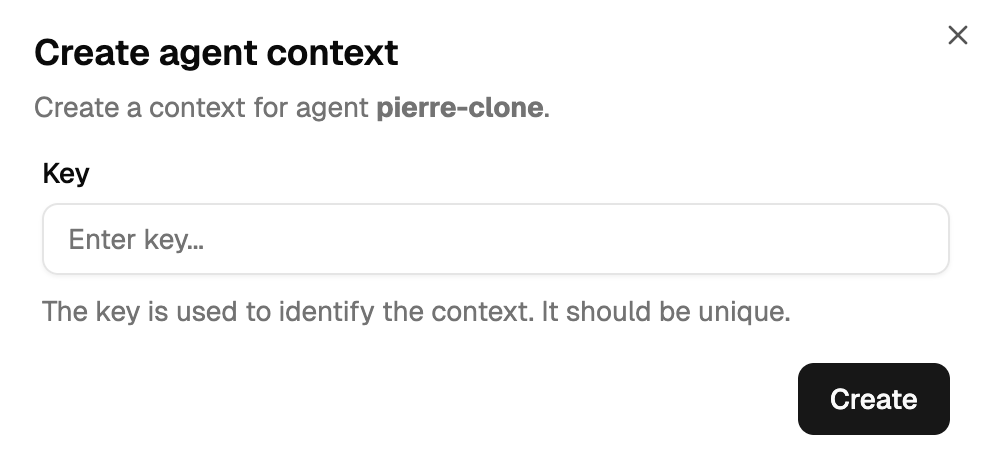
- Click + Add Agent Context, enter the key value, save
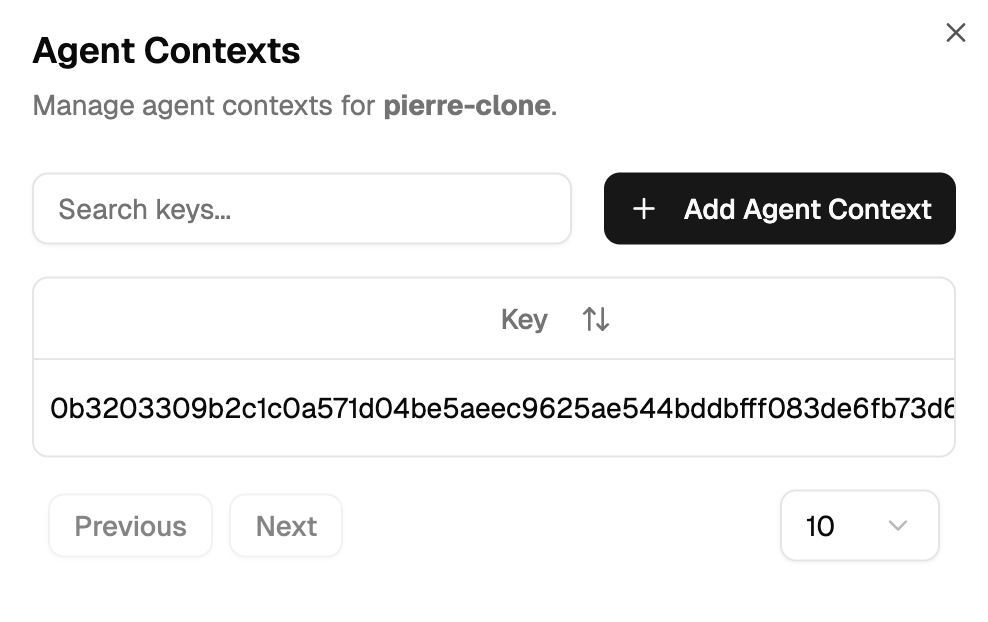
When you click + Add Agent Context, you get a simple dialog to enter the key value:
Creating keys in bulk
Need thousands of keys imported from a CSV or synced from another system? That's a developer job — point them to the Context Primary Keys API in the developer docs. They'll need the agent's collection address + token ID (visible in the dashboard) and the list of keys you want created.
The threading phase
When an expert is first @-mentioned in a conversation, it doesn't yet know which key applies. It runs a "threading" routine — analyses the message, tries to extract a matching key, and locks it for the rest of the thread. The full walkthrough is in Threading Phase.
The key insight: the regex patterns in the design table above are used inside the agent's Context Not Found prompt to teach the model what a valid key looks like. They are not enforced by the API — CreateAgentContextRequest.Validate() only rejects empty keys and keys starting with the reserved conversation-context-discovery/ prefix.
See Expert Prompts → Context Not Found for how to write the prompt.
Troubleshooting
| Error | Cause | Fix |
|---|---|---|
context with key X already exists | Key was previously created | Skip — it's already there |
You are not the owner of this agent | JWT signed with the wrong wallet | Regenerate the JWT with the owner's wallet |
| Threading keeps failing | Key pattern in the message doesn't match the regex in the prompt | Update the Context Not Found prompt |
| Keys not appearing in the UI after creation | Sync delay | Wait a few seconds, refresh |
Administrative database access
For break-glass troubleshooting, an administrator can connect directly to the agent's PostgreSQL database. Each agent has its own isolated database — there is no agent_id column on agent_contexts because the discriminator is the database connection itself:
-- After connecting to the agent's own database:
SELECT key FROM agent_contexts;
SELECT COUNT(*) FROM agent_contexts;
Internal threading scratchpads under the conversation-context-discovery/ prefix will appear in raw queries but are filtered out of the user-facing API. Direct database access is for troubleshooting only.