Expert Prompts
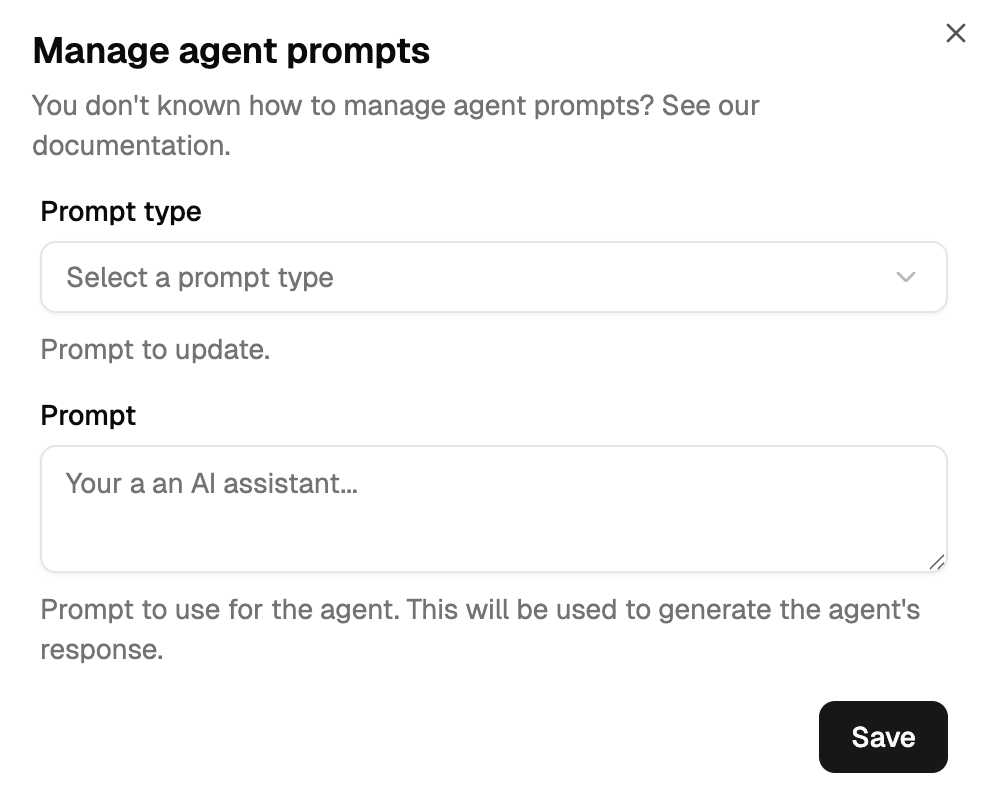
Expert agents provide specialised knowledge in a single domain. They have three prompts: System (identity and rules), Context Not Found (threading — identify which context primary key applies), and Context Found (respond using the locked context). Configure them from the dashboard: ⋮ → Manage prompts.
For full copy-paste templates see Prompt Templates → CRM Expert. For the variable reference see Dynamic Fields.
System prompt
Defines the expert's identity, specialisation, and hard rules. Always included in every inference. Structure it as: identity → context injection → mission → constraints.
You are {{ .Name }}, the CRM expert.
Full name: {{ .EnsDomain }}
Specialisation: customer data.

Context: {{ .InitialRequest.Content }}

Mission: provide verified customer information from memory.

Never speak in third person. Never propose solutions
(that's the facilitator's job). Never repeat yourself.
Context Not Found prompt
Runs during the threading phase when the expert needs to identify which context primary key applies. Two design patterns depending on how many keys you have.
Closed list (few keys)
Analyse: {{ .LatestRequest.Content }}

Choose exclusively from this list:
{{range $i, $v := .ContextKeys}}{{if $i}}, {{end}}{{$v}}{{end}}

If you cannot find a match, ask @facilitator for help.
Never guess.

Start with 🔍
Pattern matching (many keys)
Analyse: {{ .LatestRequest.Content }}

The customer ID follows this regex:
^[0-9a-f]{8}-[0-9a-f]{4}-[1-8][0-9a-f]{3}-[89ab][0-9a-f]{3}-[0-9a-f]{12}$

If you find a valid match, lock it as the context.
If you're not 100% certain, ask the most qualified agent by name.

Start with 🔍
:::tip Trust the swarm
Reference {{ .LatestRequest.Content }}, not {{ .InitialRequest.Content }}. The expert should analyse the latest message because the facilitator and other agents may already have clarified the missing key in later turns. Forcing the key to appear in the initial request is fragile; letting the swarm converge is more resilient.
:::
Context Found prompt
Runs after the context key is locked and memory for that key is loaded. The expert now has the customer's full history and should answer with it.
Respond to "{{ .LatestRequest.Content }}"
regarding {{ .ContextKey }} using only useful information.

If you don't know, ask another agent for help.
If you're not competent on this point, say so.

Start with 👍
Configuring in the dashboard
- Open your expert agent
- Click ⋮ → Manage prompts
- Pick the prompt type from the dropdown (System / Context Found / Context Not Found)
- Edit and save
Troubleshooting
- Threading never completes — the regex is too strict or the key format doesn't match. Add a fallback that asks for clarification.
- Wrong key selected — the patterns are ambiguous. Make the regex more specific or require explicit confirmation.
- Expert repeats itself — memory isn't being used. Verify the context is locked and the agent's database actually contains history under that key.
- Expert doesn't respond when @-mentioned — ENS name mismatch, or the agent isn't in the channel. Double-check the spelling of the full ENS.
See Threading Phase for how the context key gets locked, and Context Primary Keys for how to design your key format.